
Hair Color Try-On:
Preview Shades on Your Own Photo
Upload one clear photo, try from 105 hair colors, and walk into the salon with a short list and the questions to ask.

Available for iPhone. AI Hair Studio is part of Tone & Fit premium access.
What a finished preview looks like
The same photo, previewed in several hair colors, so you can compare each shade under the same lighting and framing.
Your photo
The original photo, unchanged, as the reference.
First shade
One of 105 hair colors applied to the same photo.
Second shade
A second color on the same photo, ready to compare.
How to preview hair colors on your photo
Five steps, in order. Each step ends with a clear result.
Choose a clear, evenly lit photo
Use a selfie or an uploaded photo where your face and hair are fully visible and the light falls evenly across your face.
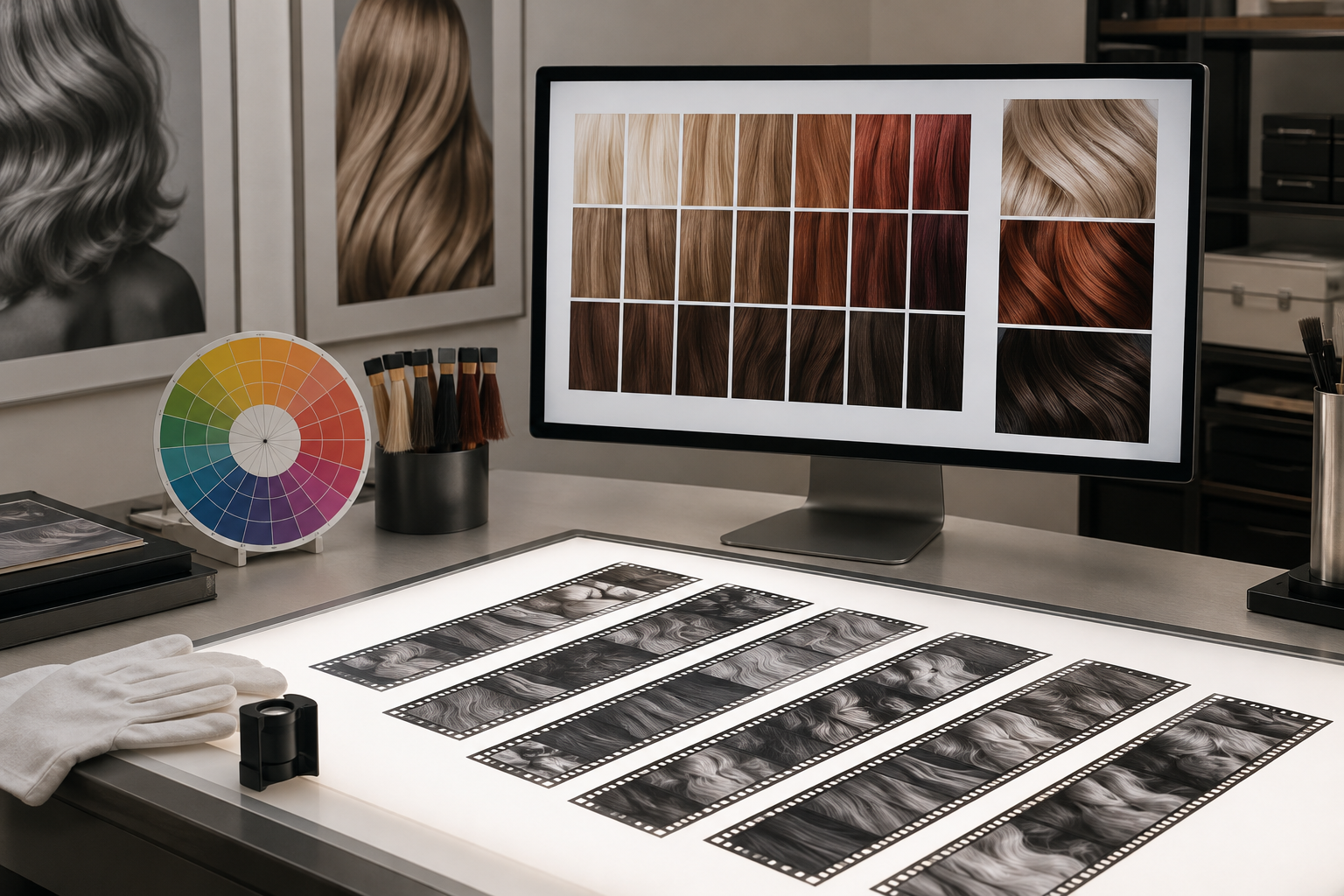
Open AI Hair Studio and pick a hair color
AI Hair Studio offers 105 hair colors and is part of Tone & Fit premium access.
Add a hairstyle if you want one
Choose from 138 hairstyles to preview a color and a cut together, or skip this step to preview color only.
Compare shades under the same lighting
Preview two or three colors on the same photo. Note how each shade changes the contrast between your hair and your face.
Narrow to favorites and prepare for the salon
Keep two or three favorites and write down questions for your stylist regarding upkeep and reaching the shade.
If the preview looks off
Hair is hard to see
Retake the photo with even light and your hair in clear view, then preview again.
Color looks flat
Retake the photo in even, bright light, then compare the shades again under the same lighting.
Glasses or bangs cover the hairline
Remove glasses and pull bangs back before you take the photo, so the hairline is visible in the preview.
The salon result looks different
A preview is a guide, not a guarantee. Bring your favorites to your appointment for your stylist to match.
How your photo is handled
Tone & Fit states that your photo is analyzed and then discarded. It is never stored, never used to train models, and never shared with advertisers. The free scan works without an account.
Before you commit: checklist
Frequently asked questions
Is AI Hair Studio free?
The free scan works without an account. AI Hair Studio is a premium feature, unlocked with a subscription or a one-time Lifetime purchase.
Is Tone & Fit available on Android?
Not yet. Tone & Fit is available for iPhone, and an Android version is coming soon.
How many hair colors and hairstyles can I try?
AI Hair Studio includes 105 hair colors and 138 hairstyles.
Will the preview match my salon result?
No. A try-on is a preview on your photo, not a guarantee. Use it to start the conversation with your stylist.
How do I choose a hair color that suits me?
Read What Color Should I Dye My Hair? or start with Color Analysis.
Preview your shortlist on your own photo
Download Tone & Fit on iPhone, then open AI Hair Studio to try 105 hair colors on your photo.
Open AI Hair Studio to start your preview